





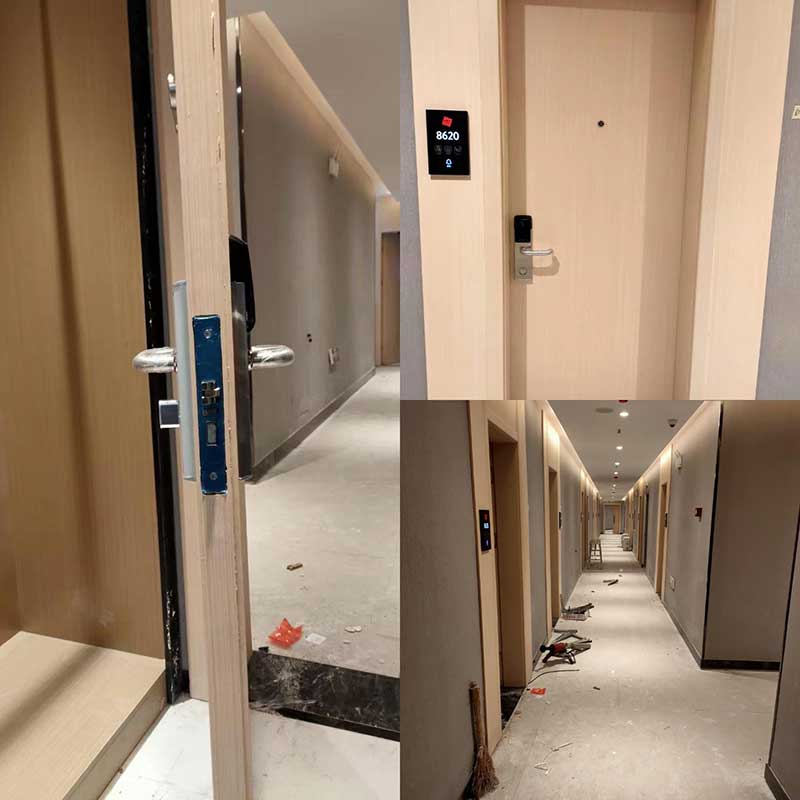
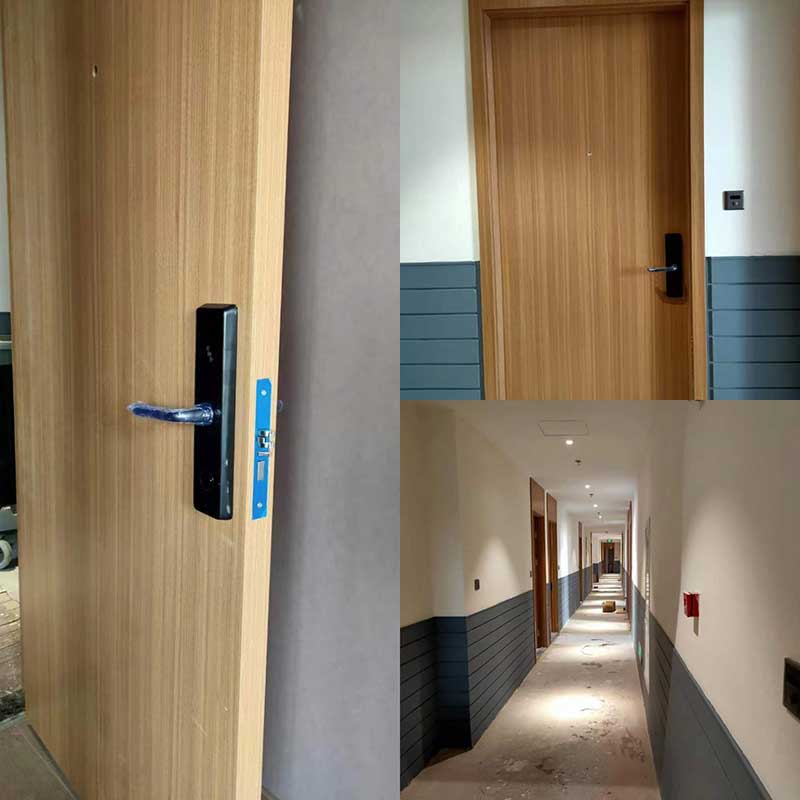
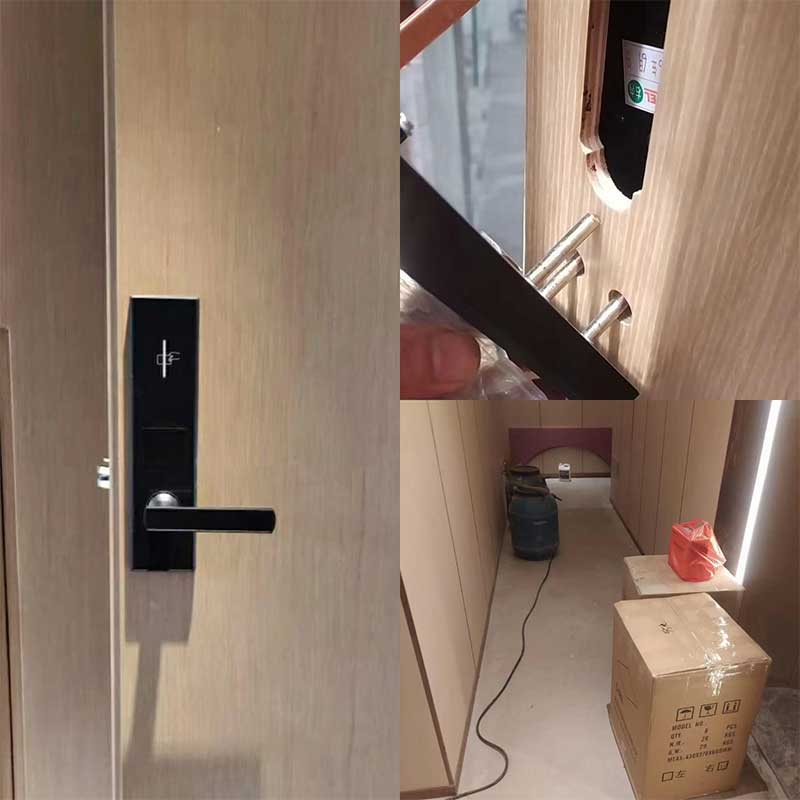
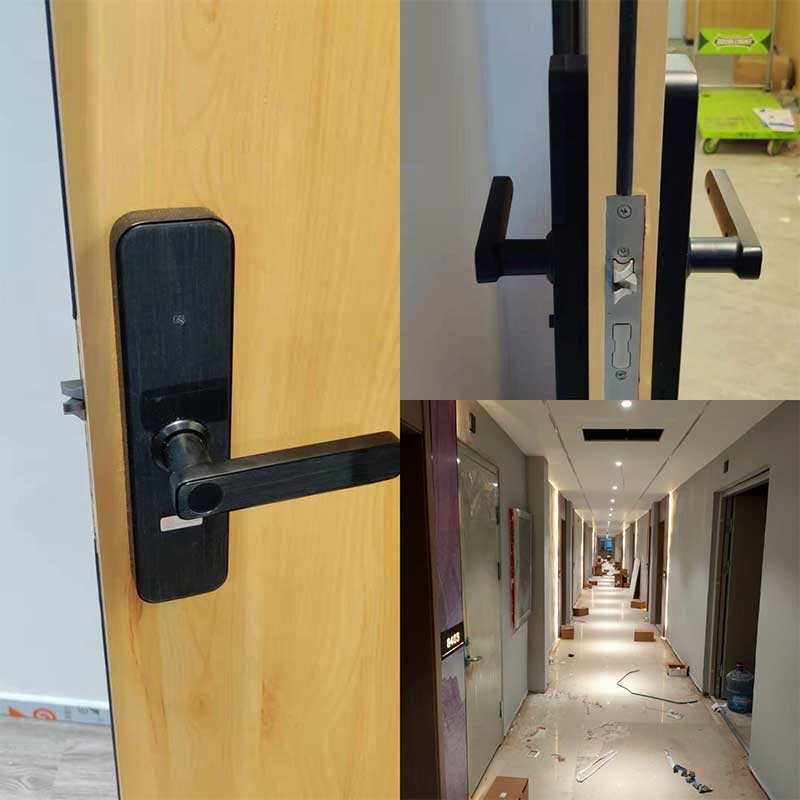
涂鸦智能成立于2014年,是一家领先的科技公司,致力于通过提供通过物联网连接一系列设备的云平台,让生活更加智能。 云平台探索连接品牌、OEM、厂商、零售商以及各个行业的智能化需求,并为他们提供智能化解决方案。 这样,不仅可以提升合作伙伴的产品价值,还可以让消费者享受智能生活带来的便利。
在国际上,涂鸦已与多家世界500强企业开展合作,包括飞利浦、施耐德电气、联想等。自2017年以来,涂鸦获得多项企业荣誉,其中最具创新力奖、技术创新品牌、中国最佳物联网平台解决方案奖等。涂鸦坚持构建物联网开发者生态,实现万物智能为使命,致力成为中国的物联网开发者平台。
涂鸦智能主要涵盖产品开发、APP开发、云服务三大领域,涉及产品涵盖大家电、小家电、消费电子、照明等,包括电灯、电插头、空调、空气净化器、净水器等。截至2023年3月31日,涂鸦IoT开发者平台注册开发者超过78.2万名,分布在200多个国家和地区,赋能品牌客户超过7600家,辐射全球渠道超过12万个。

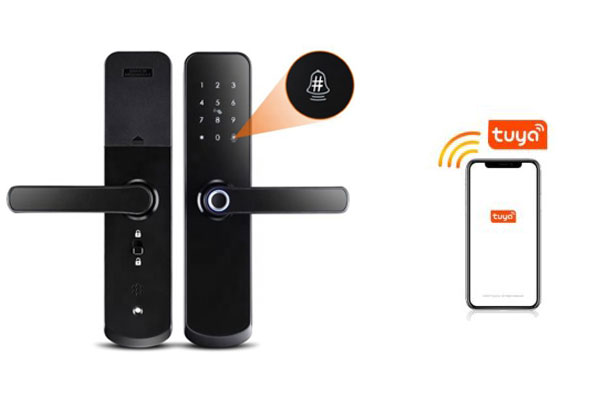
涂鸦智能研发的智能家居,通过涂鸦APP即可进行管理,具有便捷、快捷、智能、 场景丰富、功能实用、普及等特点,极大的方便了人们的生活,是智能家居行业的一大进步。
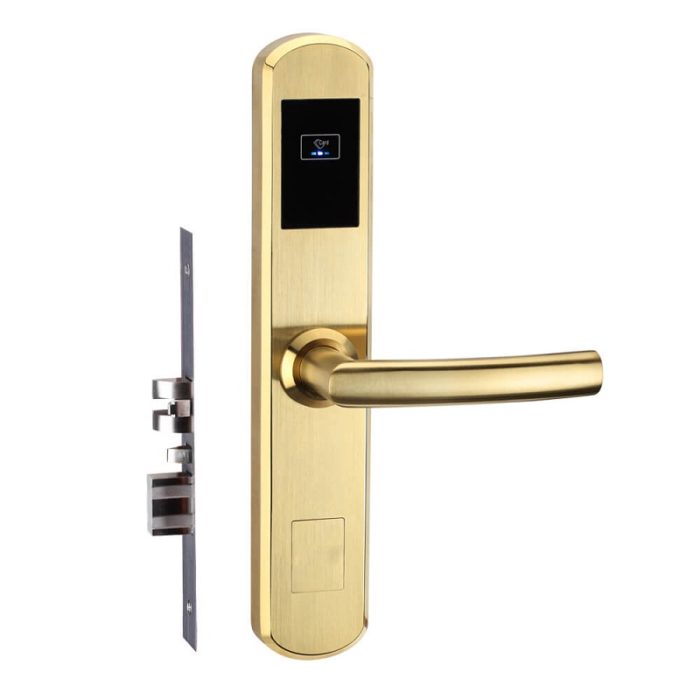
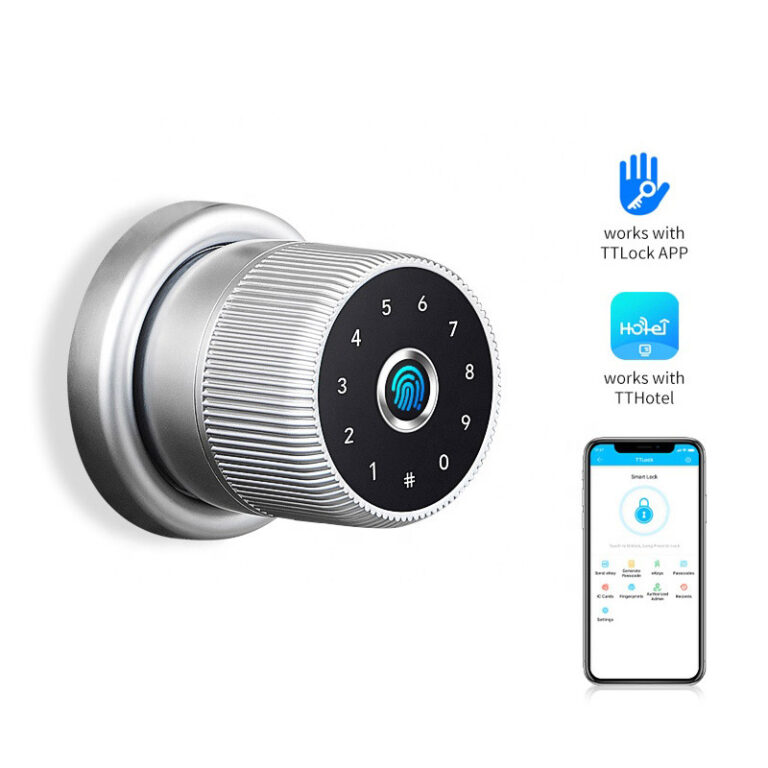
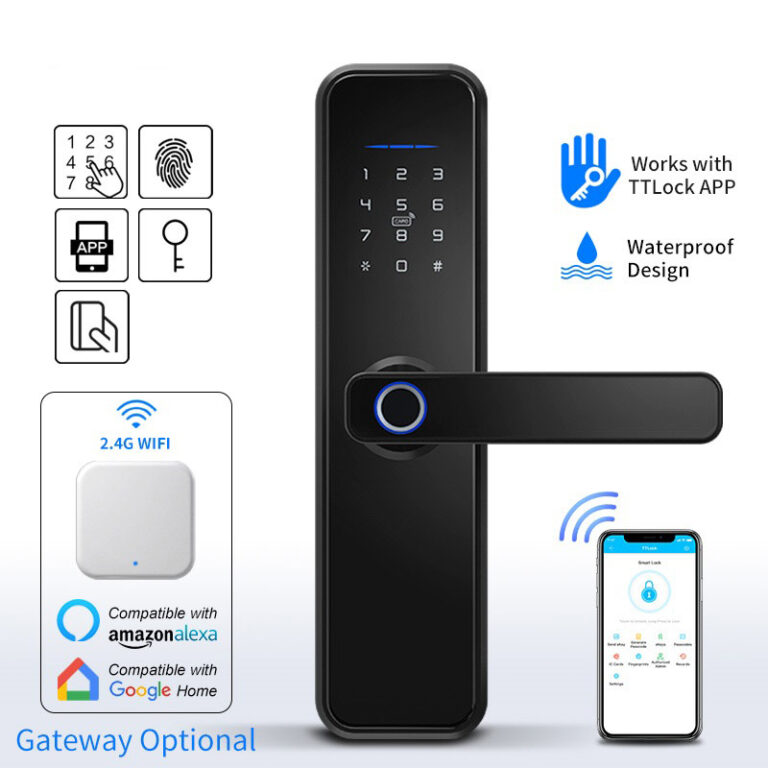
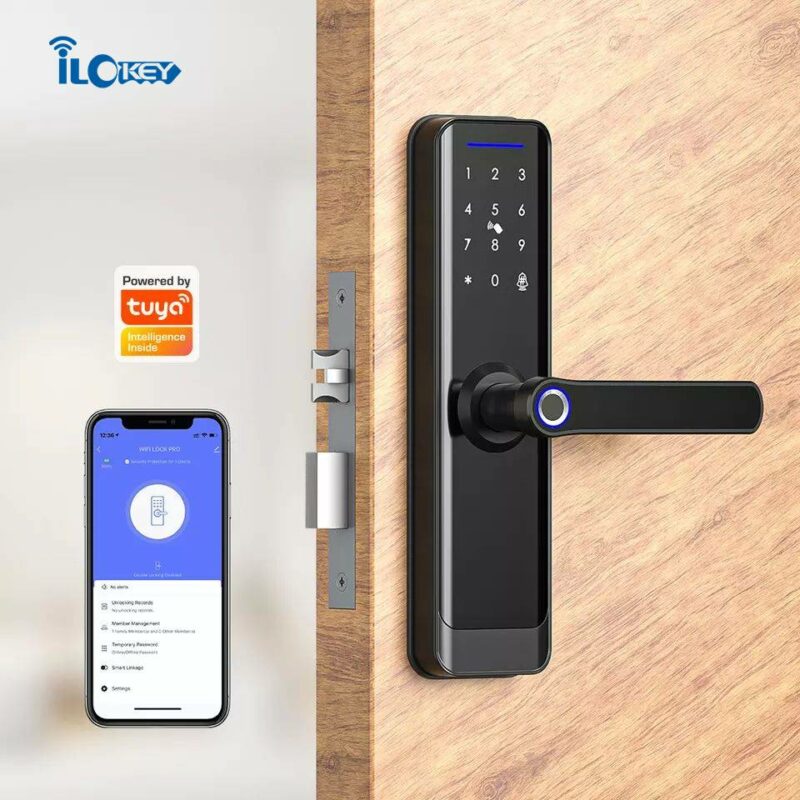
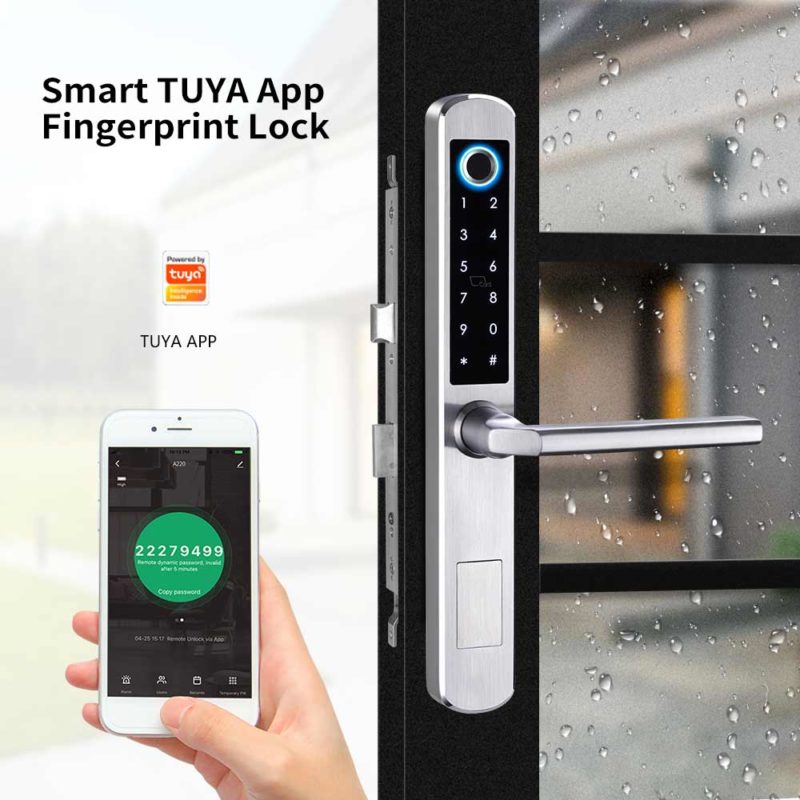
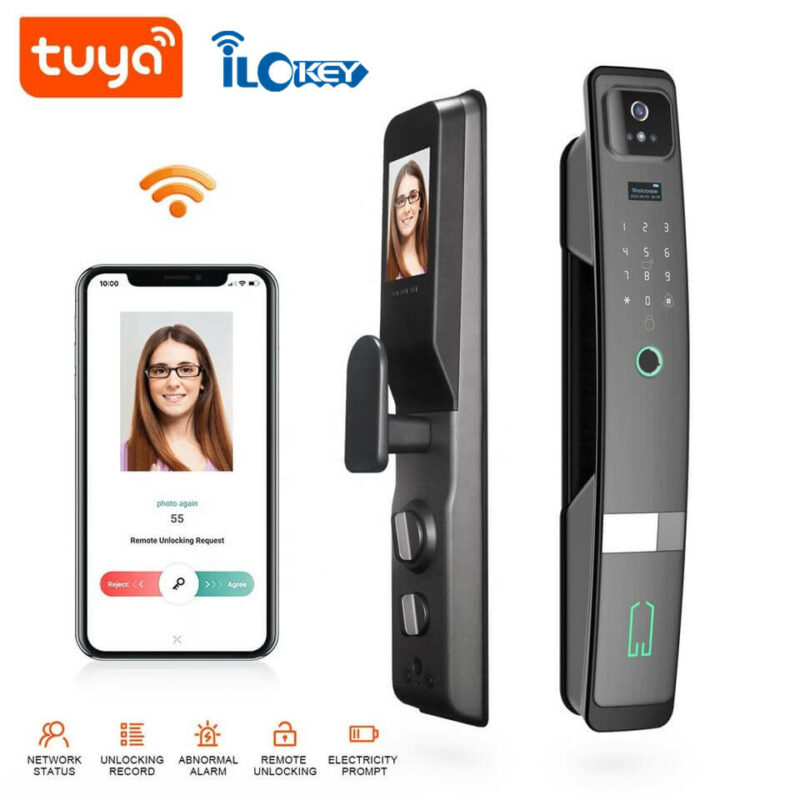
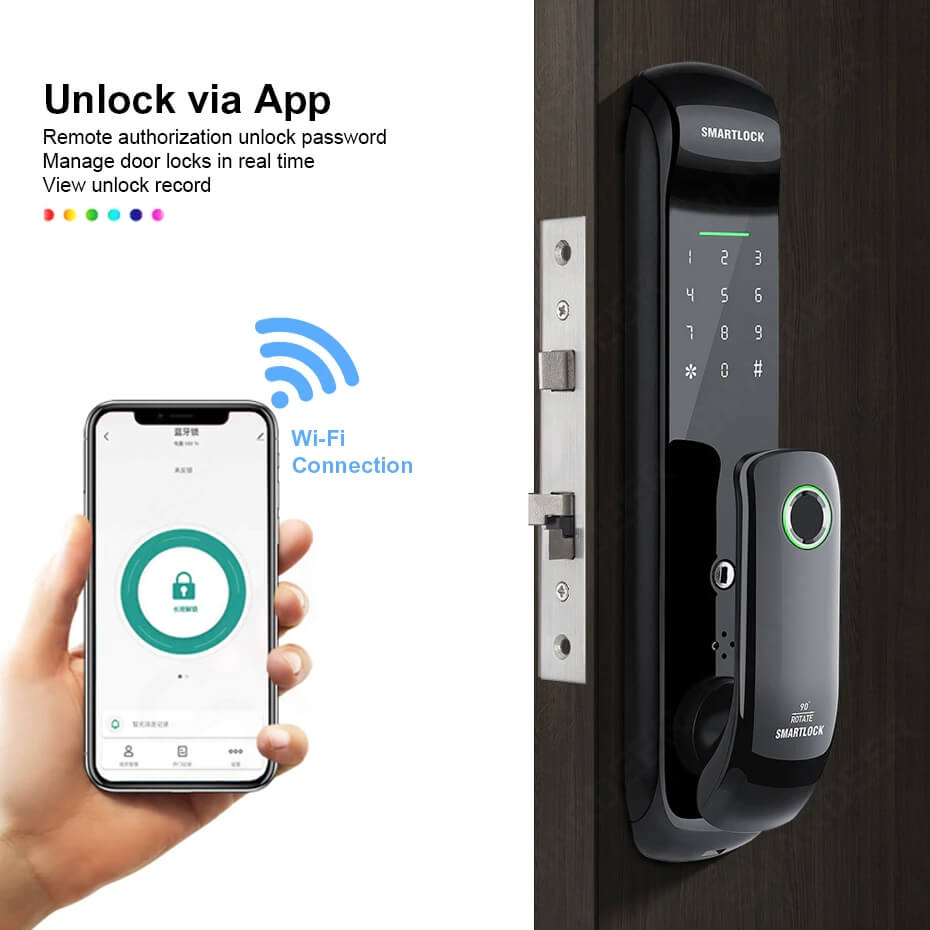
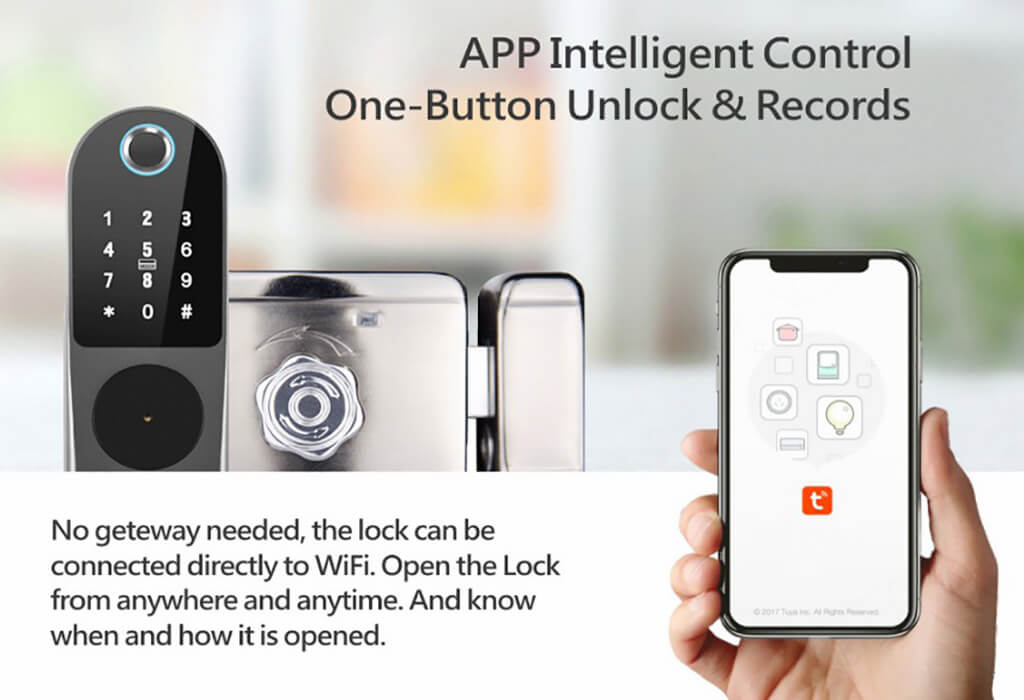
涂鸦智能门锁基于锁面板内置WIFI模块,支持远程控制、用户管理、指纹管理、密码管理、消息管理、卡管理、设置删除个人用户、安防报警等功能,支持wifi 接入、指纹、密码、卡、钥匙、App等 多种开锁方式,此外还内置门铃,支持自锁功能。
涂鸦智能门锁不仅提供了使用的便利性,还提供了家庭生态系统的安全。 它是保护客户家庭和改善智能家居环境的智能解决方案。 此外,涂鸦智能锁还与Google Assistant和Amazon Alexa智能集成。
您可以轻松激活语音命令来锁定或解锁门,并借助语音命令轻松检查状态。此外,涂鸦智能锁生态系统还集成了猫眼和视频门铃,因此您可以在家中的任何地方与访客交谈或阻止访客并回答他们的问题。
涂鸦智能锁的功能让其受到人们的喜爱,下面就让我们来为大家介绍一下它的核心功能。
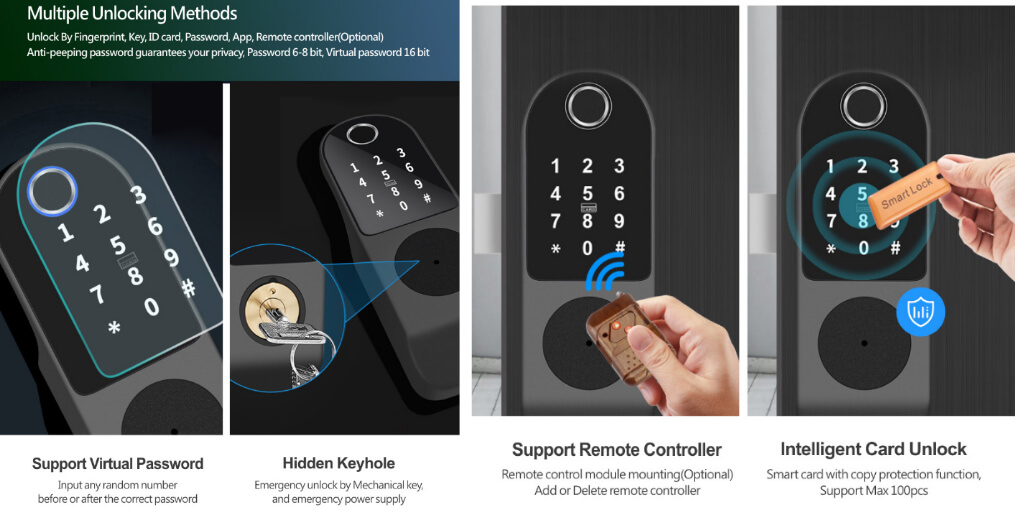
众所周知,智能锁相较于传统锁的优势就在于不用随身携带钥匙,涂鸦智能锁当然也不例外,支持指纹、密码、门卡、人脸、指静脉等多种开锁方式,让你不用担心找不到钥匙,彻底解放你的双手。
涂鸦智能锁内置系统日志功能,可以提醒你门铃是否响了,老人小孩是否回家了。如果你想查看某段时间内谁进过家门,可以查看其记录日志。
涂鸦智能锁系统中有报警功能,在一些异常情况下会发出警报提醒你,比如有人多次输入错误密码、有人试图撬锁、门锁电池电量过低等。另外你还可以将报警功能与手机短信联动,即使你不在家也可以随时了解情况。
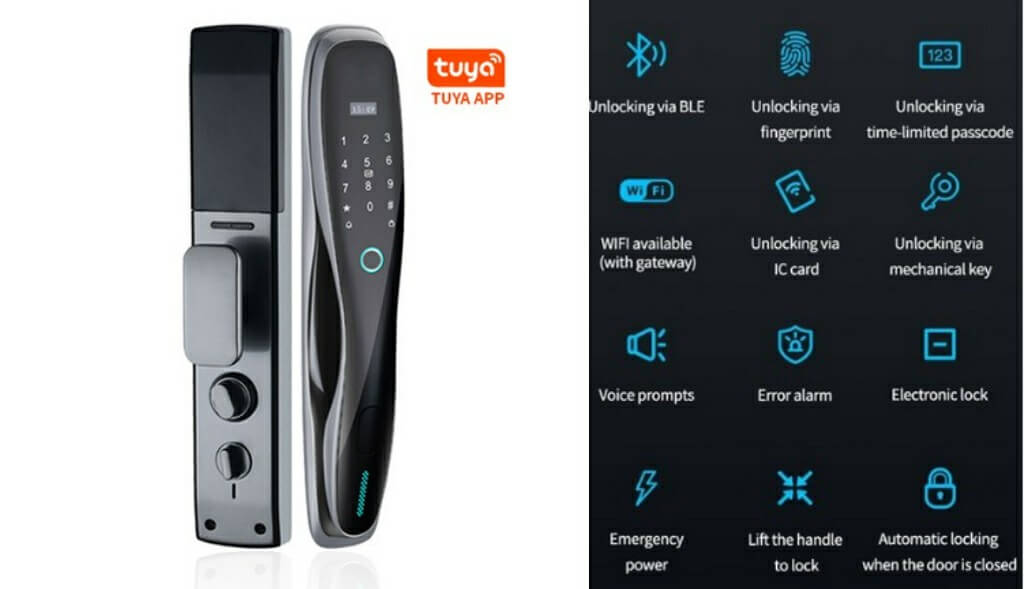
涂鸦智能锁可分配访问权限,支持远程访问、临时密码、离线密码登录功能。满足您各种生活需求。
涂鸦智能锁可与您的其他智能家居系统兼容,一键管理全屋,十分便捷智能。
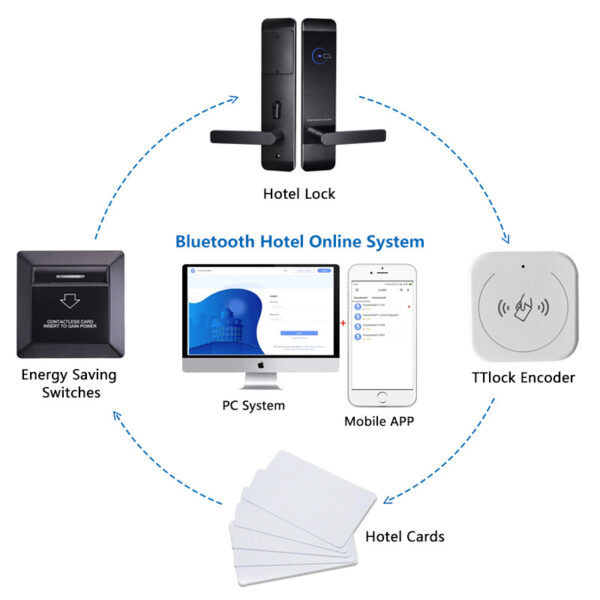
涂鸦智能锁是公寓SaaS、酒店SaaS的核心产品,实现密码分配、权限管理等功能,助力智能生态运营。
In addition to the advantages of Tuya smart locks, there are also some disadvantages:
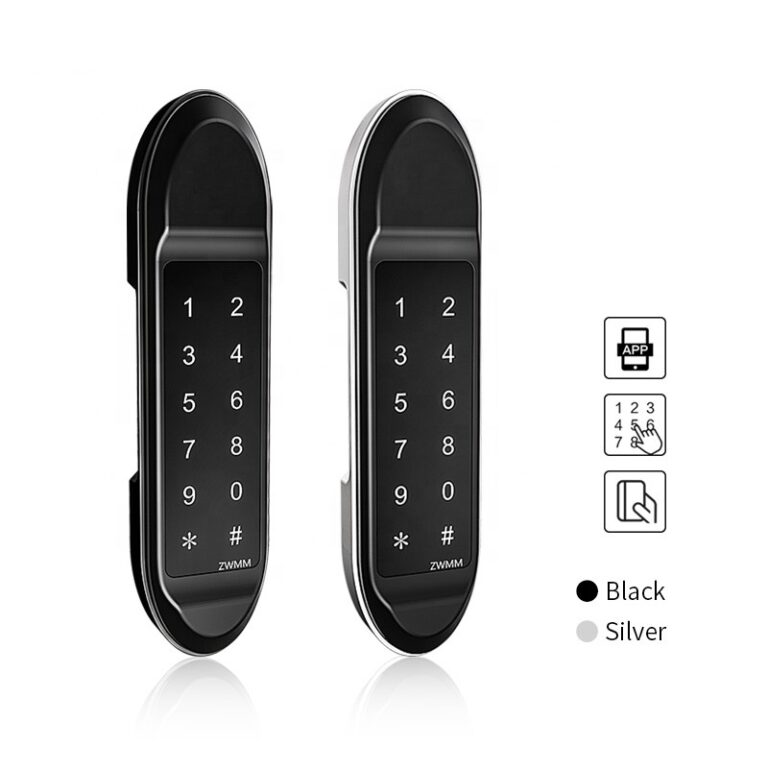
Currently, Tuya has mass-produced public locks of the following types:
If you choose to install the Tuya smart lock yourself, we recommend that you carefully read the installation manual and watch the installation video to avoid installation mistakes. Here are the installation steps:
In addition to referring to the paper manual, you can also watch the electronic manual and installation video on the Tuya APP. The electronic manual supports PDF format; the installation video supports door lock installation videos in MP4 format and H5 link format.
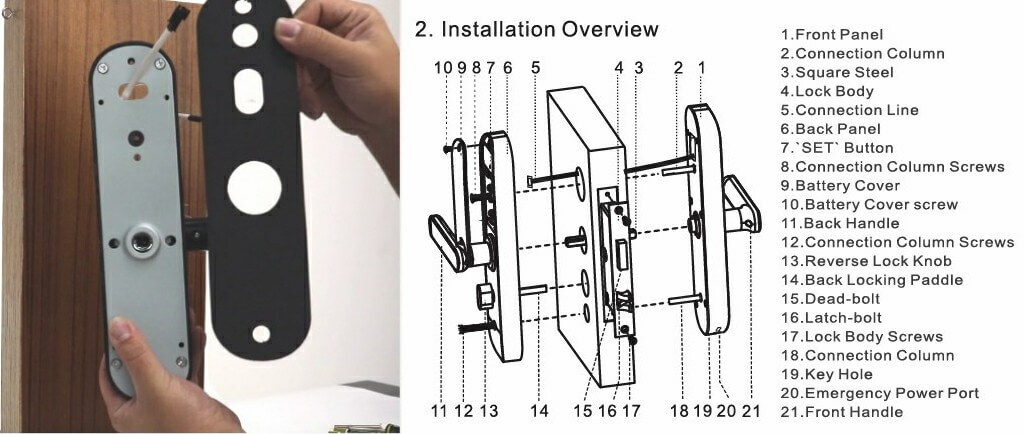
Here are some considerations when installing:
The following is some guidance information on how to use Tuya Smart Lock.
Here’s how to set up Tuya Smart Lock for you.
After you’ve finished installing your smart lock, you need to set up the lock before you can start using it. Here’s how to add an administrator:
Please note: The first three users you add are administrators, meaning you have granted them access to the door lock. ‘*’ is the return, and exit button, and ‘#’ is the confirmation button.
1) Add administrator press “1” Add administrator press “1”, input administrator information, input fingerprint or password (fingerprint input 4 times, password input 6-8 digits twice (888888#), IC card input once 2
) To delete the administrator information, press “2” to enter the number and press # to confirm (002#) (cannot delete all, the first administrator is reserved)
3) To add a network hotspot connection, press “1”
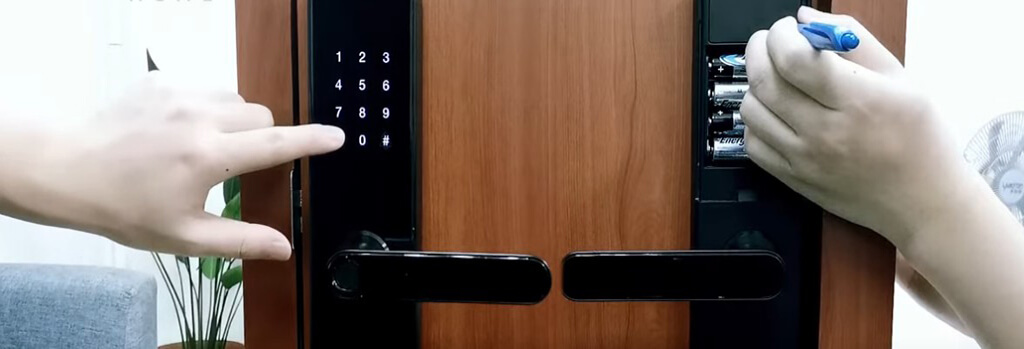
Note that the delete user feature cannot delete administrators.
Please note: the password after resetting the lock is the default password: 1234567890.
Follow the brief instructions to set up the Tuya Smart Lock using the Smart Life app.
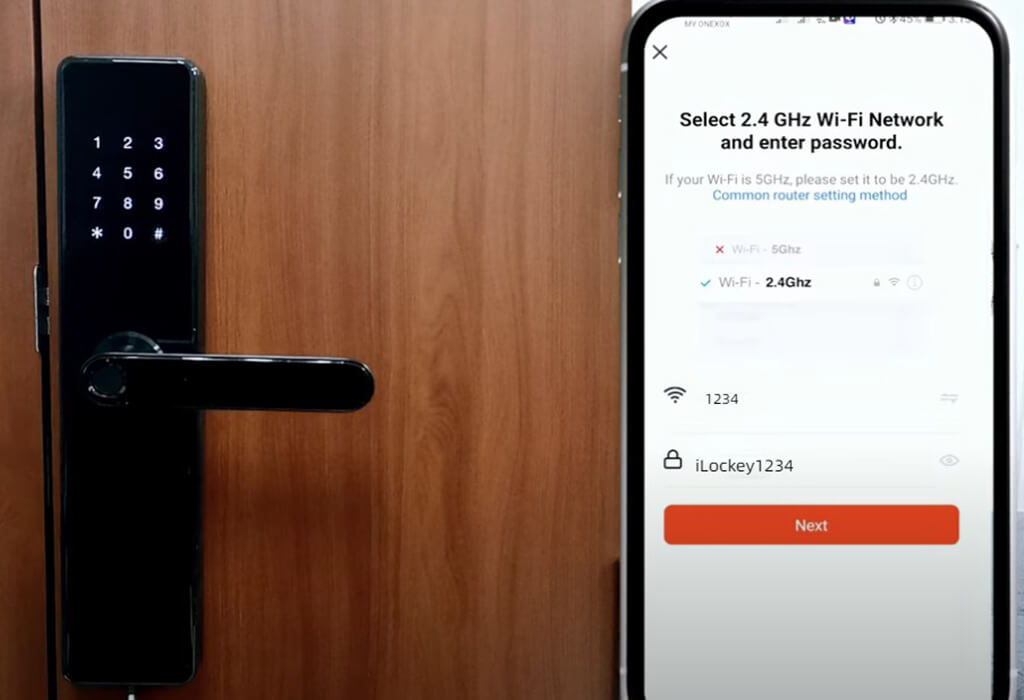
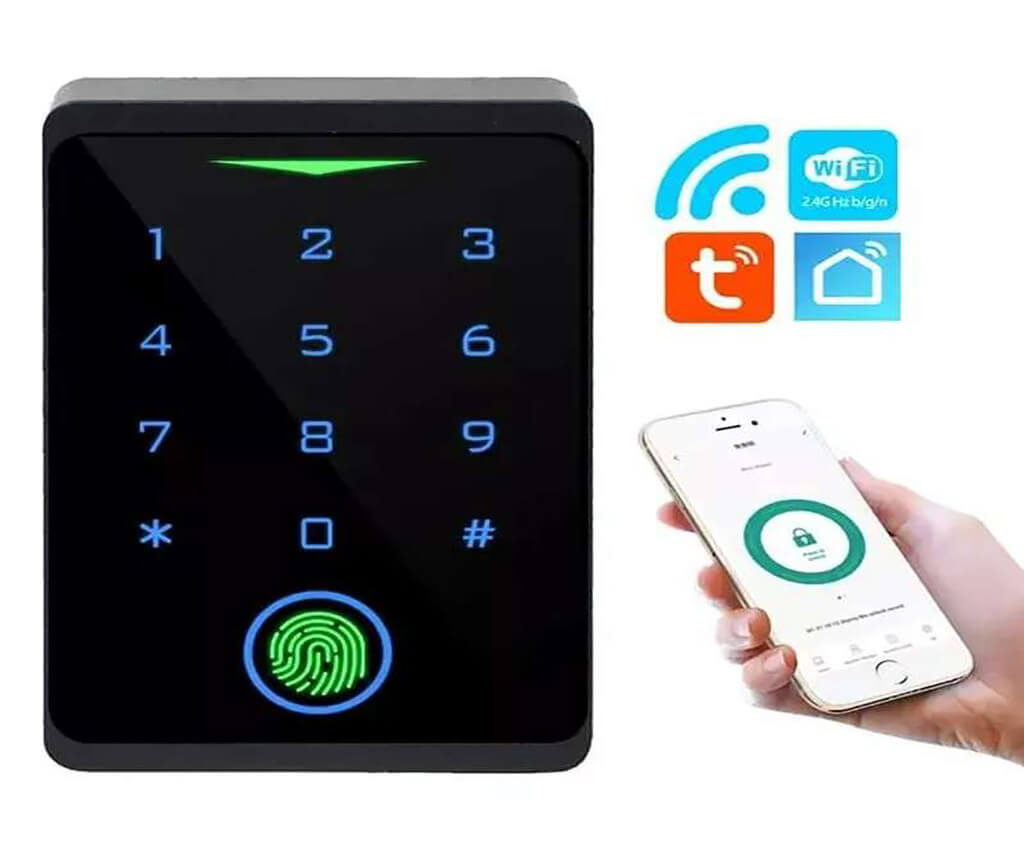
Then the wifi smart door lock realizes all settings of control and networking through the wifi module. See the steps for Tuya smart door to connect to wifi.
If it’s not connected to a 2.4 GHz WiFi network, you may need to change to another network. You can also use your phone to connect to the desired wireless network.
The following information is about how to use Tuya smart life App.
You can download this App by searching Smart Life or scanning the QR code in the Apple App Store and major application markets.
Please note: Please select your country and region when logging in.
Smart Life app also has another login method, which is biometric login. Biometrics makes logging in easier and faster. You don’t need to manually enter the account number or password, you only need your face recognition or fingerprint recognition. (iOS supports Face ID, Android supports Touch ID) Of course, you can also choose whether to enable biometric login.
Here are some frequently asked questions about Tuya smart locks.
Yes, Tuya Smart Door Lock can be linked with other smart products. Wi-Fi, Zigbee door locks can be configured with intelligent automation linkage. Under the Bluetooth gateway link, the Bluetooth door lock supports intelligent automation.
Prices for Tuya smart locks range from tens to hundreds of dollars, depending on their features and size.
Different types of smart door locks can support up to 6 unlocking methods: fingerprint unlocking, password unlocking, App unlocking, NFC unlocking, key unlocking, magnetic card unlocking, and combination door opening.
Tuya complies with industry requirements and international safety standards. The company’s internal control framework maintains a high level of compliance, especially with regard to the implementation of cloud and application regulations. Tuya is proud to have the most comprehensive certification among IoT solution providers in the Asian region. In order to obtain information security, privacy, and compliance certification and verification, Tuya cooperates with various agencies, independent security service providers, consultants, and auditors around the world.
In Tuya’s white paper, these compliance certifications are listed as follows:
To sum up, Tuya Smart is the leader in smart homes, and it is worth considering when you buy a smart home. With the advancement of technology, Tuya is also trying its best to keep up with the times and create a more efficient and convenient lifestyle for customers. If you have other questions about Tuya Smart Lock, you can find out about it on Tuya’s official website, or you can contact us at iLockey at any time.